
- macOS
- iOS
- iPadOS
ControlPad
A trackpad, keyboard and remote for your Mac, with controls that follow the app you're using.
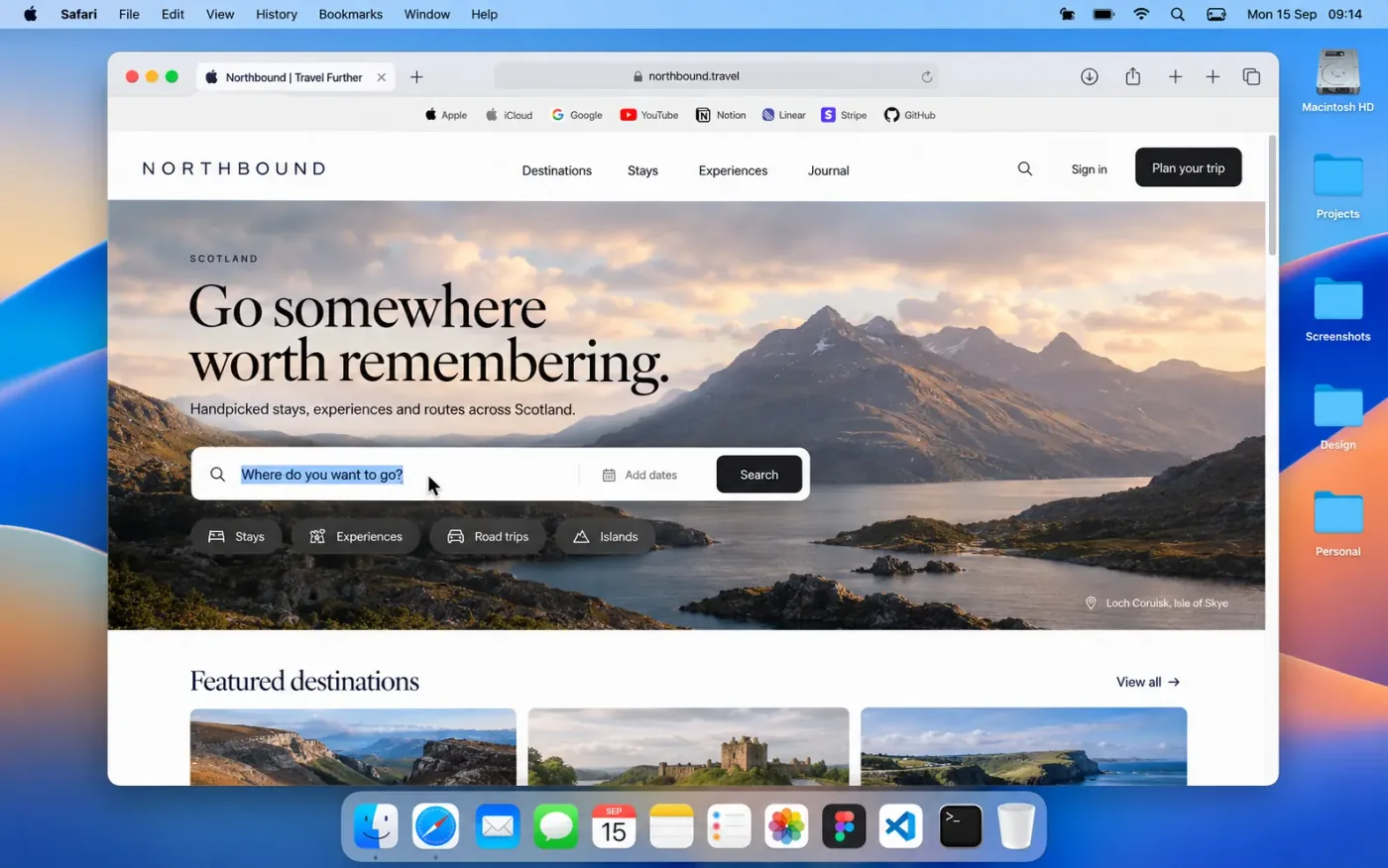
Overview
ControlPad turns an iPhone or iPad into a trackpad, keyboard and remote for a Mac. Switch apps on the Mac and the controls switch with you: tabs in Safari, replies in Mail, formatting in Notes, builds in Xcode. A native Mac app and touch-first iPhone and iPad apps talk directly over the local network, with no cloud service and no account.
- The problem
- Controlling a Mac from the sofa, the other side of the desk or a presentation means a trackpad and keyboard you don't have with you, and generic remotes don't know which app you're using.
- My role
- Designed, built and launched solo across three platforms: product strategy, architecture, interaction design, the networking and security model, signing and notarisation, distribution, website and support.
Highlights
- 01
Controls that follow the frontmost app
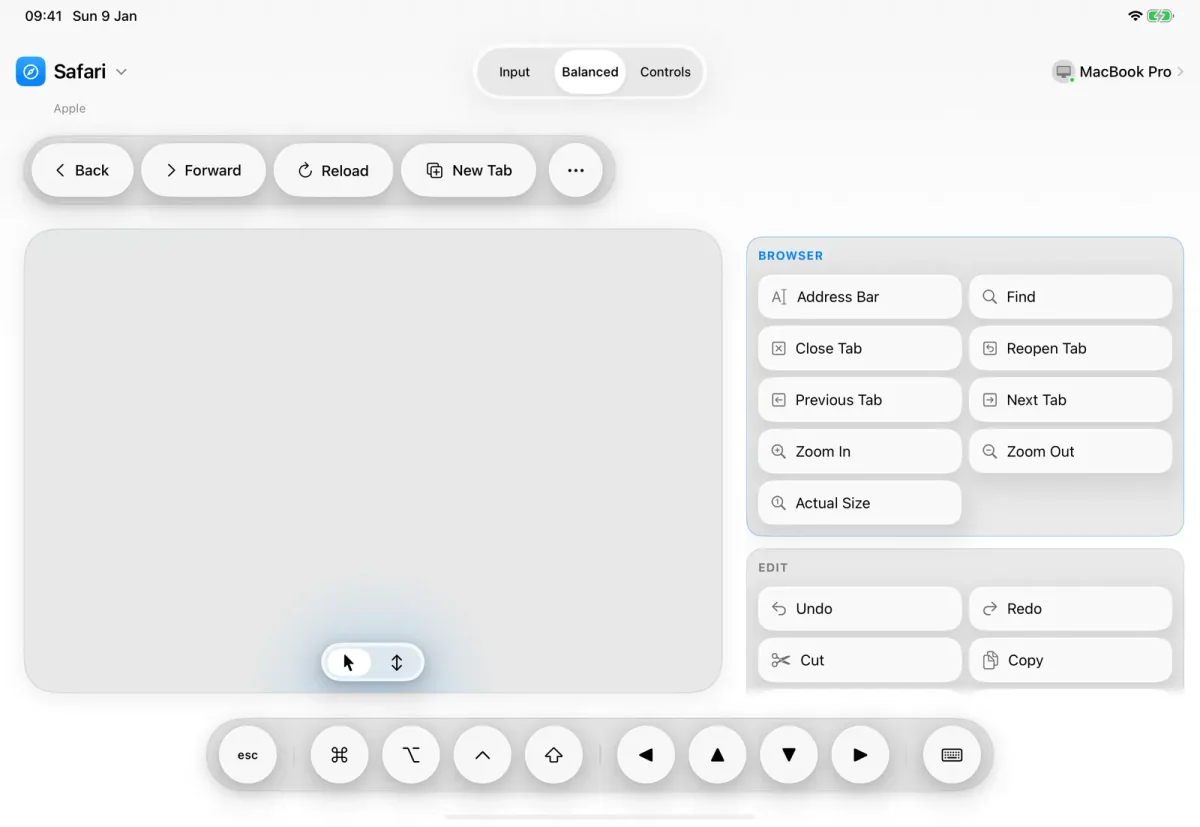
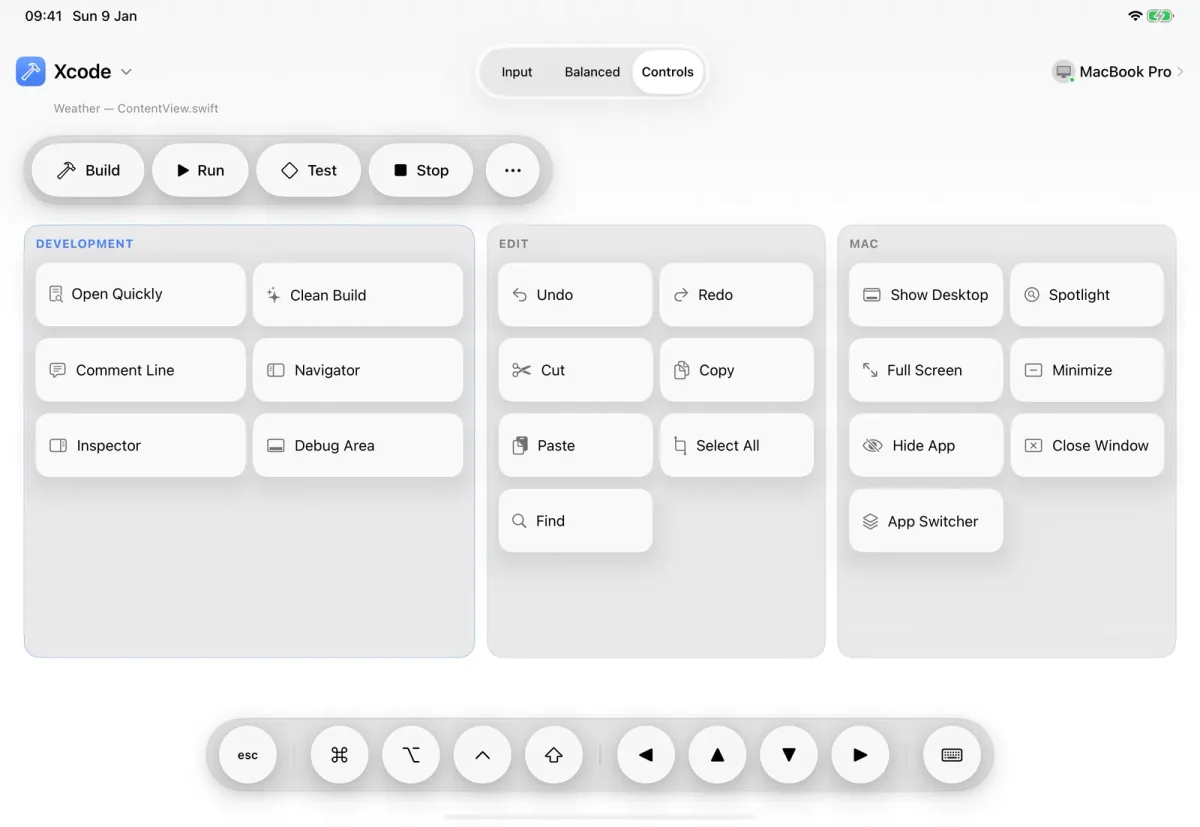
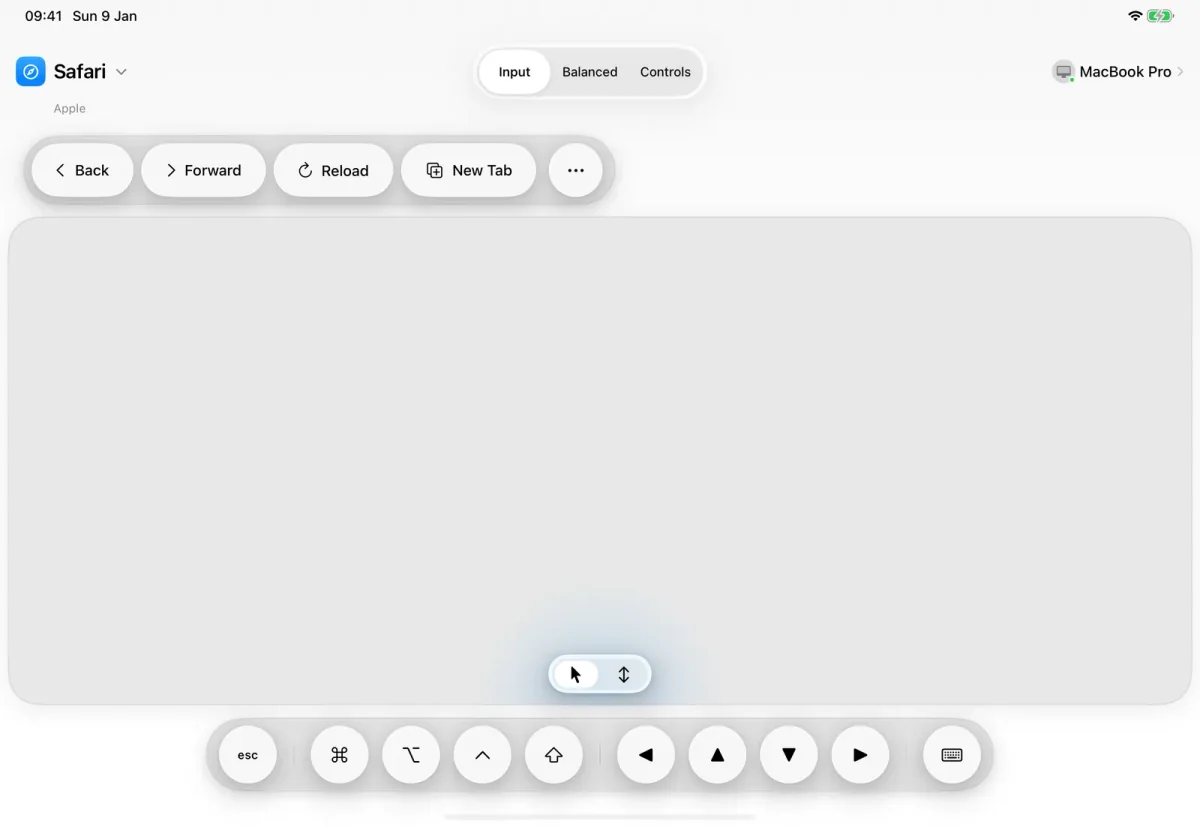
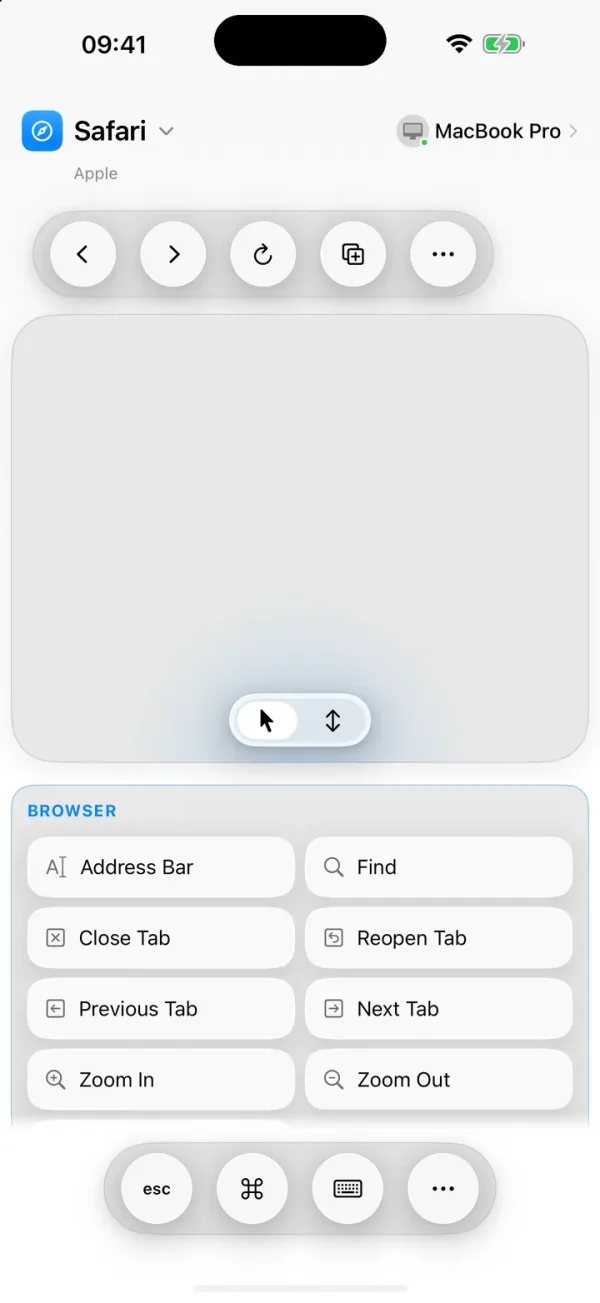
The Mac app tracks which app is in front and whether a text field has focus, and the touch surface reshapes itself to match. More than 50 Mac apps get tailored controls; every other app still gets the essentials: Undo, Copy, Paste, Find and Save.
- 02
A trackpad that feels like a Mac's
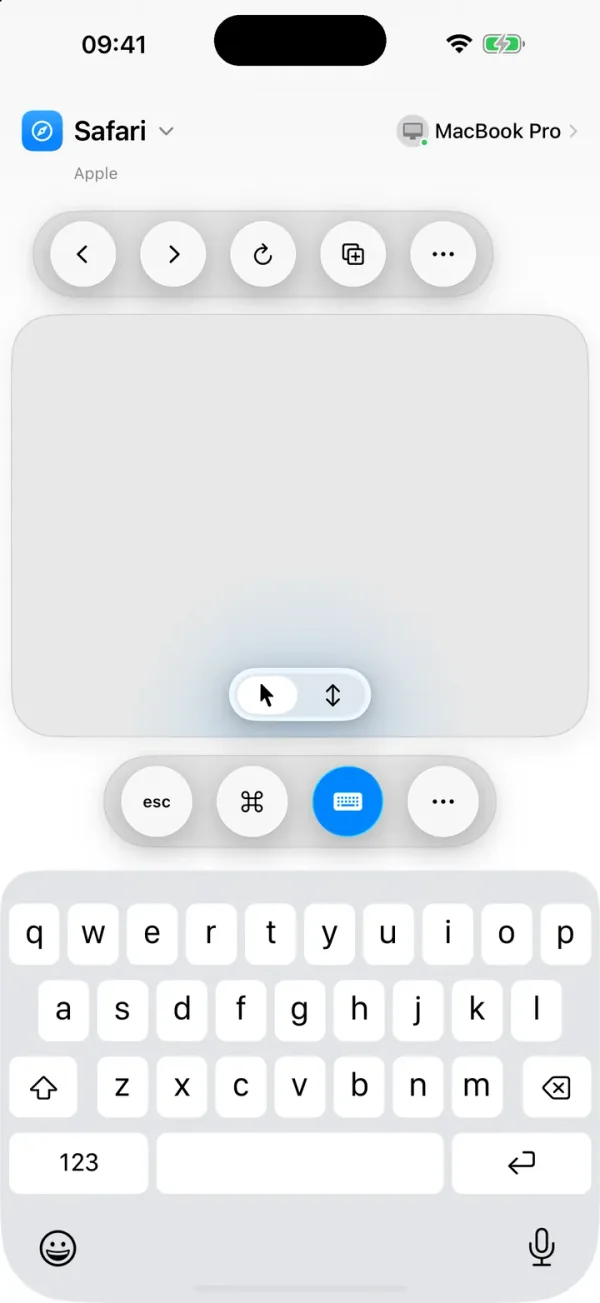
Tap to click, press and drag windows, two-finger scroll, right-click and Mission Control swipes, with pointer speed tuned to match a MacBook trackpad. Typing uses the device's own keyboard, so autocorrect, dictation and emoji come for free, with Command, Option, Control and the arrow keys a tap away.
- 03
Three layouts, one surface
Input makes the whole screen a trackpad; Balanced puts a trackpad beside the current app's commands; Controls shows every command at a glance for when you're at the desk with your own keyboard and mouse.
- 04
Local and private by design
Devices find each other on the local network and talk directly. Pairing uses a six-digit code that's never sent over the network, every later connection is encrypted, and a sleeping Mac can be woken over the network. Nothing is sent to the internet.
- 05
Shipping outside the Mac App Store
Driving another app's pointer and keyboard needs macOS Accessibility access, so the Mac app is signed, notarized and distributed directly from controlpad.tech. The iPhone and iPad apps are on the App Store.
Engineering challenges
Context-aware controls
Tracking the frontmost Mac app and text-field focus through macOS Accessibility, and reshaping the touch surface in step, with tailored commands for more than 50 apps and sensible defaults for every other one.
Input that feels native
Pointer acceleration, scrolling and gestures tuned to feel like a MacBook trackpad over a local network, where latency is immediately noticeable.
Local-only security
Discovery and a direct connection on the local network, pairing with a six-digit code that never crosses the network, and encryption on every connection after that. No server, no account.
Distribution outside the Mac App Store
The Mac app needs Accessibility access, so it ships signed and notarised from controlpad.tech, while the iPhone and iPad apps go through the App Store.
Screenshots
More products
- 02
RepSense
Strength training, measured rep by rep. Apple Watch tracks, iPhone guides.
- iOS
- watchOS